
For Users (Applicants) #
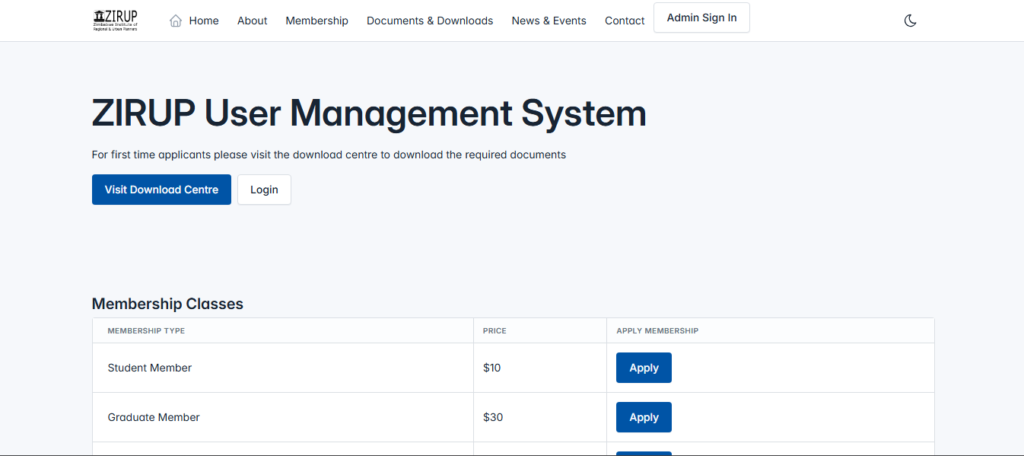
1. Accessing the System #
- Visit the system URL: https://membership.zirup.org.
- Click on the “Apply” button to start the membership application process.
2. Applying for Membership #
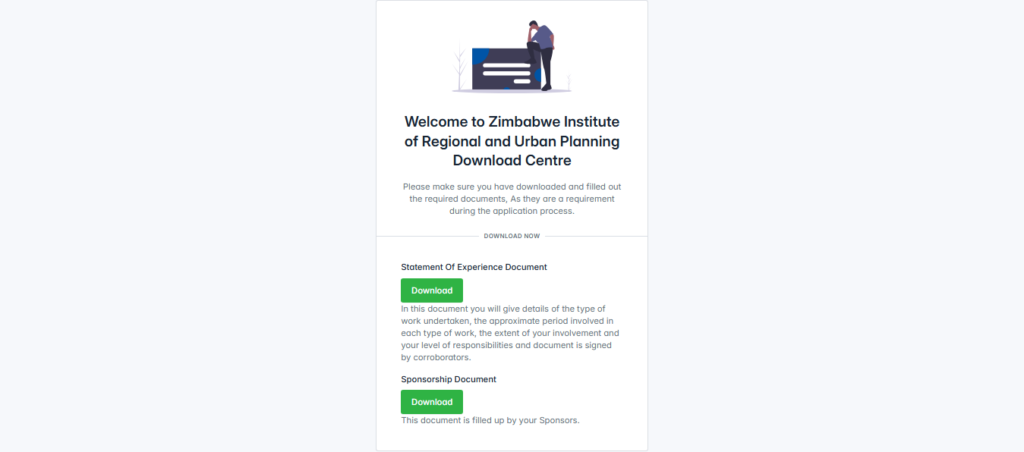
- Download Required Documents:
- Access the Download Centre to download the Statement of Experience and Sponsorship Document.
- Ensure these documents are completed and signed by the required parties.
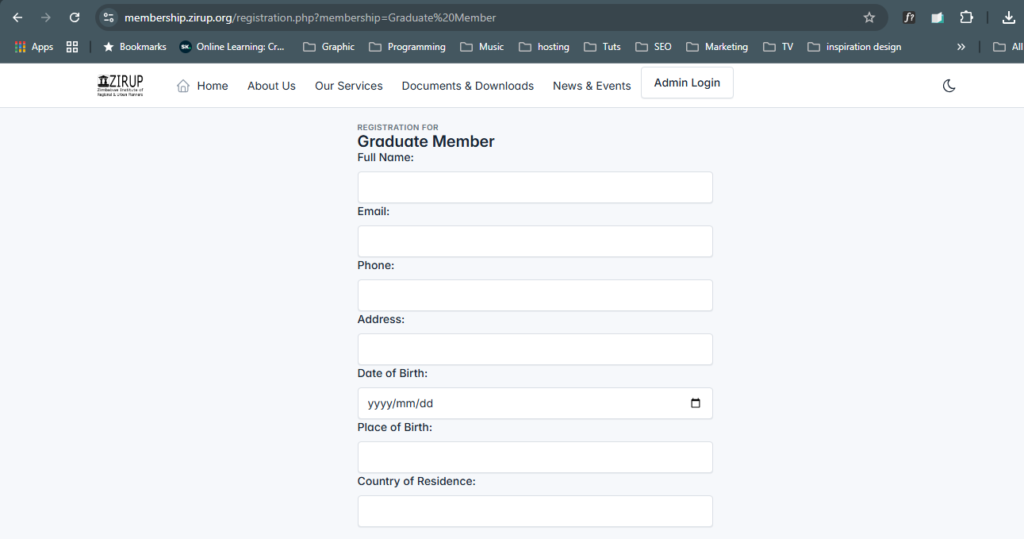
- Complete Registration:
- Fill in personal and academic details.
- Upload the completed documents (PDF format only).
- Submit the form to proceed.
- Payment:
- Choose offline payment via EFT or bank deposit.
- Use the unique reference number sent to your email for payment tracking.
- Confirmation:
- After submitting your application, you will be placed in the waiting room for admin approval.
- Check your email for updates on your application status.
3. Post-Approval Steps #
- If approved, you will receive an email with:
- An approval notification.
- A link to create your membership account.
- Use the same email provided during registration to sign up and access your dashboard.
4. Using the Dashboard #
- Profile Management:
- View or update your personal and academic details.
- Payment Tracking:
- Check invoices and payment history.
- Download statements and view reminders for due payments.
- Support Tickets:
- Log issues or inquiries through the support section.
- Track ticket status (e.g., Pending or Resolved).
- Events Calendar:
- View upcoming and past events organized by the institution.
For Admins #
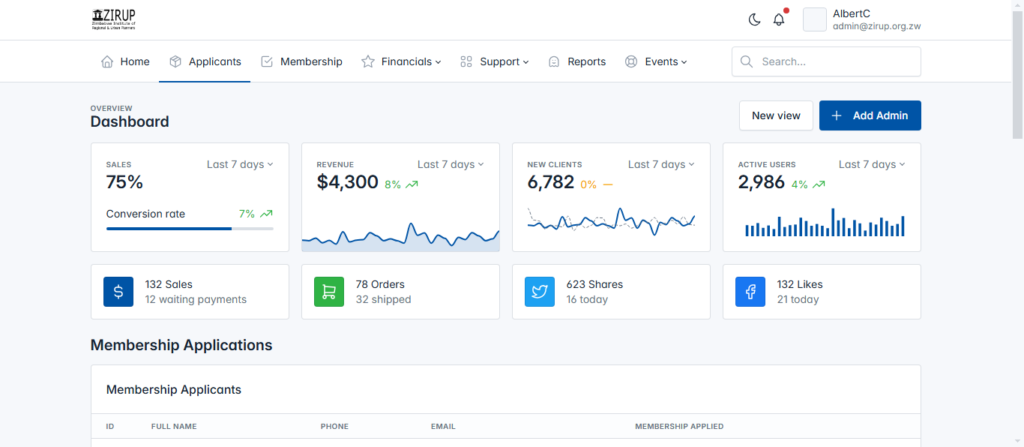
1. Accessing the Admin Panel #
- Visit the system URL: http://zirup.jobsportal.co.zw.
- Log in using the provided admin credentials:
- Username: admin@zirup.org.zw
- Password: @Weddingz01%
2. Managing Applications #
- Viewing Applications:
- Access the dashboard to view all submitted applications.
- Check application details, including uploaded documents and payment references.
- Approval Process:
- Approve or decline applications based on provided information.
- Declined applications are stored in a separate table for future review if necessary.
- Approved users are assigned to their respective membership classes.
- Notification:
- Approved users receive an email with a registration link and instructions.
3. Payment Verification #
- Verify offline payments using the unique reference numbers provided by users.
- Confirm payments before approving applications.
4. Managing Tickets and Events #
- Support Tickets:
- View, manage, and resolve user tickets.
- Track ticket statuses for better user support.
- Events:
- Create and manage events through the events calendar.
- Events will be visible to users via their dashboards.
5. General System Management #
- Monitor user activity and ensure smooth system operations.
- Update content in the Download Centre as necessary.
- Generate reports on applications, payments, and user activity.
This user manual ensures that both applicants and admins can effectively use and navigate the system for their respective roles.


